
Why Your Toolkit Matters #
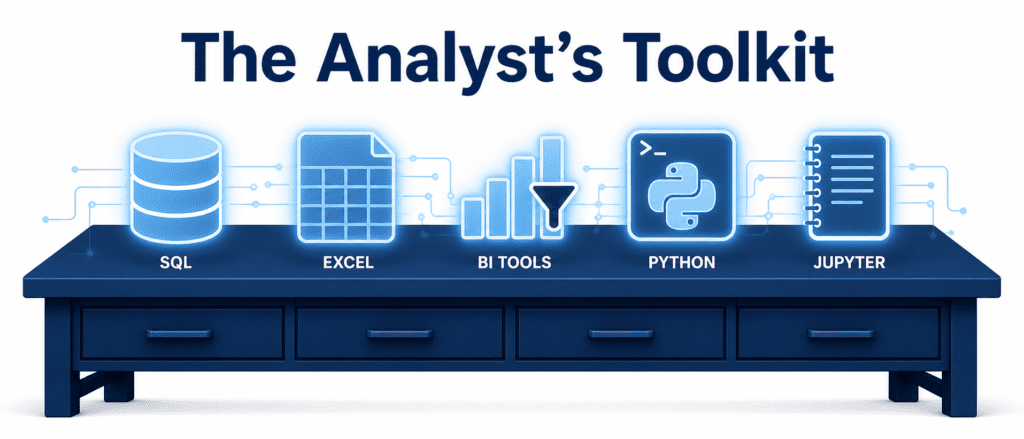
You don’t need to know 20 tools. You need to know the right four so well that they become second nature. Most of your daily work will ping-pong between them. Let’s break them down with a quick overview first.
| Tool | What It Does Best | Real-Life Analyst Use |
|---|---|---|
| SQL | Querying databases, pulling exactly the rows/columns you need | “Give me all orders from last month for the East region.” |
| Spreadsheets (Excel/Sheets) | Quick ad-hoc analysis, pivot tables, sharing with non-technical colleagues | “Here’s a pivot table of sales by region, and a quick chart.” |
| BI Tools (Tableau, Power BI) | Interactive dashboards, automated reporting for stakeholders | “Here’s a live dashboard; filter by product and date.” |
| Python (Pandas, Matplotlib, Seaborn) | Heavy lifting, automation, complex transformations, statistical analysis | “I’ve cleaned 2 million rows, joined three tables, and generated a correlation matrix.” |
Notice how they complement each other. SQL gets the data, Excel does a quick sanity check, Tableau shares the story, and Python automates the messy stuff.
SQL: The Analyst’s Mother Tongue #
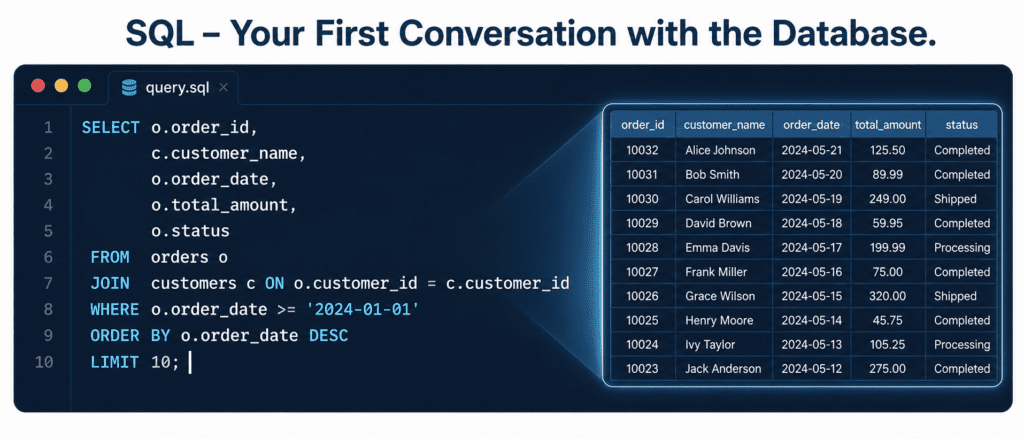
You can’t escape it: SQL is the door to your data. Whether it’s MySQL, PostgreSQL, or BigQuery, the structure is the same. Analysts use it to filter, aggregate, and join tables before ever opening Python.
Here’s a tiny real-world example using Python to run a SQL query against a local database. You can copy this code directly — it creates a sample database, inserts some records, and runs a query that sums sales by region.
import sqlite3
import pandas as pd

# Create an in-memory database (pretend this is your company's data warehouse)
conn = sqlite3.connect(':memory:')
cursor = conn.cursor()

# Create a simple orders table
cursor.execute('''
CREATE TABLE orders (
    order_id INTEGER,
    region TEXT,
    amount REAL
)
''')

# Insert a few rows
orders = [
    (1, 'North', 120.50),
    (2, 'South', 89.99),
    (3, 'North', 200.00),
    (4, 'East', 150.00),
    (5, 'South', 75.25)
]
cursor.executemany('INSERT INTO orders VALUES (?,?,?)', orders)

# The analyst's query: total sales by region
query = '''
SELECT
    region,
    SUM(amount) as total_sales,
    COUNT(*) as order_count
FROM orders
GROUP BY region
ORDER BY total_sales DESC
'''

# Read directly into a pandas DataFrame (this is the magic bridge)
result_df = pd.read_sql_query(query, conn)
print(result_df)

conn.close()
Output:
  region  total_sales  order_count
0  North       320.50            2
1   East       150.00            1
2  South       165.24            2
his is exactly the kind of snapshot an analyst delivers before monthly meetings. Notice how we used Python to run the query and immediately got a DataFrame. That’s the everyday marriage of SQL and Python.
Spreadsheets: The Universal Translator #
You won’t write Python code for every single question. Sometimes a pivot table and a quick VLOOKUP (or XLOOKUP) is the fastest route from question to answer. Spreadsheets are also how you share preliminary results with non‑technical teams — they can open, filter, and understand without needing a dev environment.
Don’t overlook them. A master analyst can:
- Use pivot tables to summarize thousands of rows in seconds.
- Create sparklines inside cells to show trends compactly.
- Build conditional formatting rules that highlight outliers automatically.
No code needed here, just your hands on the keyboard. The moment you send a VP a clean Excel file with a well-labeled pivot, you’re speaking their language.
BI Tools (Tableau, Power BI): The Storytellers #
BI tools take your SQL result sets and turn them into living, breathing dashboards. Stakeholders don’t need to see code. They need a button that filters by region, a KPI card that updates automatically, and a clear visual answer to “Is this good or bad?”
You’ll often follow this pattern:
- Write a complex SQL query that joins five tables.
- Pull the result into Tableau or Power BI.
- Build a dashboard that refreshes daily.
- The boss checks it every morning with coffee — and never once asks for raw data.
Learning one BI tool well (I’d suggest Tableau Public for practice) is a career multiplier.
Python: The Heavy Lifter #
Now the code you’ll probably spend the most tutorial time on. Python, with its libraries, is where you clean, transform, analyze, and visualize at scale. The holy trinity for analysts is Pandas, Matplotlib, and Seaborn.
import pandas as pd
import matplotlib.pyplot as plt
import seaborn as sns

# 1. Simulate sales data (in reality, you'd read a CSV)
data = pd.DataFrame({
    'date': pd.date_range('2026-05-01', periods=90, freq='D'),
    'sales': [120, 135, None, 150, 160, 130, 200, None, 210, 190] * 9,
    'region': ['North', 'South', 'East', 'West', 'North', 'South', 'East', 'West', 'North', 'South'] * 9
})

# 2. Clean: drop missing sales rows (a real dataset would have these)
print(f"Rows before dropping missing: {len(data)}")
data = data.dropna(subset=['sales'])
print(f"Rows after dropping missing: {len(data)}")

# 3. Analyze: average weekly sales by region, but first create a 'week' column
data['week'] = data['date'].dt.isocalendar().week

weekly_avg = data.groupby(['region', 'week'])['sales'].mean().reset_index()
print("\nFirst few rows of weekly average:")
print(weekly_avg.head())

# 4. Visualize: a simple line plot of weekly average sales per region
plt.figure(figsize=(7,3))
sns.lineplot(data=weekly_avg, x='week', y='sales', hue='region', palette=['#A4D8F0', '#1B3A5C', '#0F4C81', '#5D9CEC'])
plt.title('Weekly Average Sales by Region', fontsize=14)
plt.xlabel('Week Number')
plt.ylabel('Average Sales')
plt.tight_layout()
plt.show()
# Note: In WordPress, you'd capture the plot image and insert it after the code.
Output:
You’ll see a line chart with four colored lines (each a region) showing how average sales move week to week. The printed DataFrame will show something like:
Rows before dropping missing: 90
Rows after dropping missing: 72
First few rows of weekly average:
  region  week   sales
0   East    18  155.0
1   East    19  160.0
2   East    20  185.0
3   East    21  165.0
4  North    18  135.0
Jupyter Notebooks: Your Digital Lab Bench #
Everything you want to experiment with, document, and share with your team lives here. Jupyter Notebooks combine code, rich text, and visualizations in one place. It’s where you build the analysis step‑by‑step, then export it as a PDF or a clean HTML report.
Think of it as your analyst journal. You’ll often start a new .ipynb file, import pandas, run the SQL query from earlier, and immediately start plotting — all without leaving your browser.
Bonus Tools Worth Naming #
- Git & GitHub: Version control for your code and notebooks. If you accidentally delete a perfectly tuned analysis, Git brings it back.
- Cloud Platforms (BigQuery, AWS Athena): When your data lives in the cloud, you query it directly using the same SQL skills, just on massive datasets.
- Command Line / Terminal: Moving files, running scripts, and a touch of
cronfor automation. Not glamorous, but a huge time‑saver.
Putting Them Together in One Workflow #
A typical Monday morning for an analyst might look exactly like this:
- SQL – Pull the latest week’s data from BigQuery.
- Python/Jupyter – Load the CSV output, merge with last month’s figures, find anomalous regions.
- Excel – Export a summary table for the marketing manager who wants to “see the numbers.”
- Tableau – Refresh the dashboard so the VP sees updated charts.
- Git – Commit the notebook with a note about the anomaly found.
That’s it. No single tool solves everything. Together, they make you the person who can turn “Hey, what’s happening with sales?” into a clear, evidence‑based answer.