Setup Machine Learning Environment #
“A carpenter does not blame his tools. But he also does not show up to a job site with a broken saw. Your ML environment is your workshop. Setting it up correctly before you start will save you days of frustration and debugging.”
What You Will Learn in This Module #
By the end of this tutorial, you will have:
- A fully functioning Python environment for ML
- Scikit-learn installed and tested
- Jupyter Notebook or JupyterLab running in your browser
- Understanding of when you need a GPU (and when you do not)
- Optional: GPU support configured (if you have compatible hardware)
Part 1: The ML Toolbox (What Are We Installing?) #
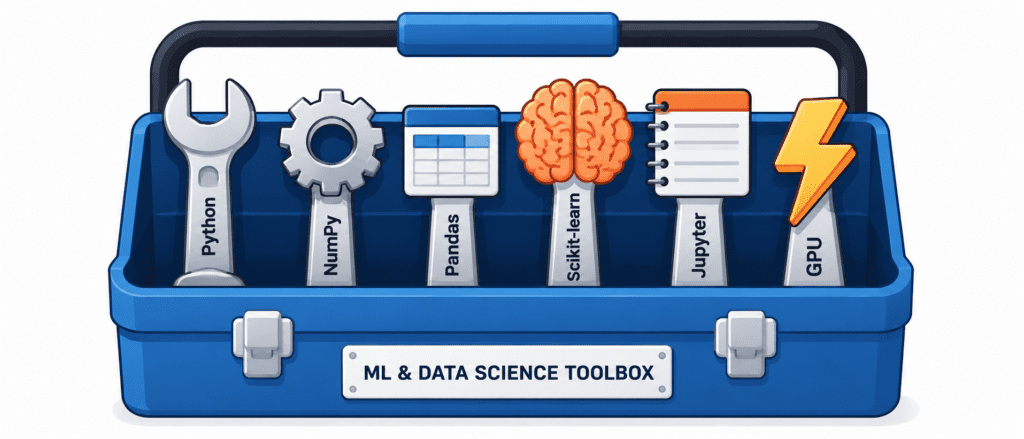
Before we write commands, let us understand what each tool does.
| Tool | Purpose | Do You Need It? |
|---|---|---|
| Python | The programming language | ✅ Absolutely |
| NumPy | Numerical computations (arrays, matrices) | ✅ Yes (all ML uses it) |
| Pandas | Data manipulation and analysis | ✅ Yes (data cleaning) |
| Matplotlib | Plotting and visualization | ✅ Yes (exploring data) |
| Scikit-learn | Traditional ML algorithms | ✅ Yes (core library) |
| Jupyter | Interactive notebooks | ✅ Highly recommended |
| TensorFlow / PyTorch | Deep learning | ⚠️ Only if doing deep learning |
| CUDA | NVIDIA GPU support | ⚠️ Only if you have NVIDIA GPU |
Part 2: Option 1 – The Easy Way (No Installation Required) #
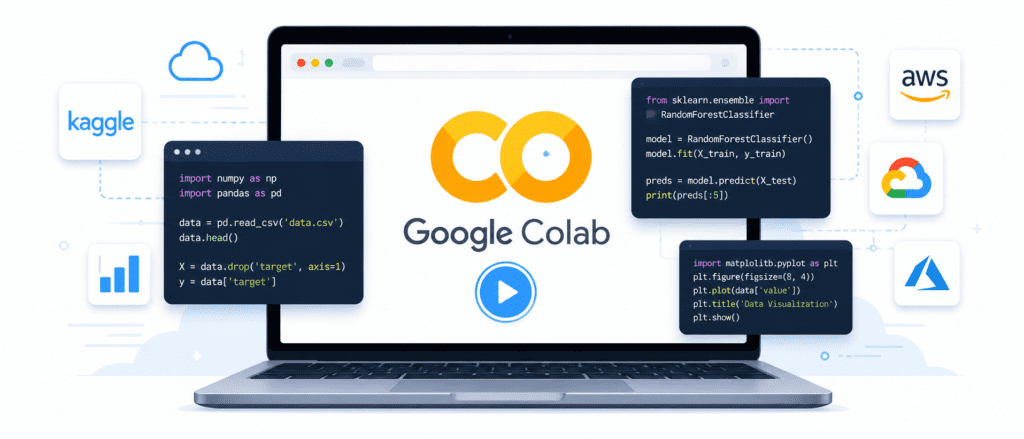
If you just want to start coding immediately, use a cloud-based notebook. No installation. No configuration. Works in your browser.
Google Colab (Recommended for Beginners) #
What it is: A free Jupyter notebook environment hosted by Google. It comes with most ML libraries pre-installed. It even includes a free GPU.
How to access:
- Go to colab.research.google.com
- Sign in with your Google account
- Click “New Notebook”
- Start coding
Pros:
- Zero installation
- Free GPU access (with limitations)
- Works on any computer (even Chromebooks or iPads)
- Built-in sharing and collaboration
Cons:
- Requires internet connection
- GPU sessions time out after a few hours
- Limited RAM and storage
- Not suitable for production or large datasets
When to use Colab: Learning, experimenting, small projects, teaching.
Kaggle Notebooks #
What it is: Free Jupyter notebooks hosted on Kaggle. Comes with many ML datasets pre-loaded.
How to access:
- Go to kaggle.com
- Create a free account
- Go to “Notebooks” section
- Create a new notebook
Pros:
- Free GPU (30 hours per week)
- Many public datasets available
- Great for competitions
Cons:
- Limited GPU time
- Requires Kaggle account
Part 3: Option 2 – The Professional Way (Local Installation) #
If you want to run ML on your own machine, follow this guide. This gives you full control and no internet dependency.
System Requirements #
| Component | Minimum | Recommended |
|---|---|---|
| RAM | 8 GB | 16 GB or more |
| Storage | 20 GB free | 50 GB+ SSD |
| CPU | Any modern processor | 4+ cores |
| GPU (optional) | NVIDIA with 4GB VRAM | NVIDIA with 8GB+ VRAM |
| Operating System | Windows, macOS, or Linux | Ubuntu Linux or macOS |
Step 1: Install Python #
Download Python from python.org. Get version 3.9, 3.10, or 3.11. Do not get Python 2 (it is dead).
On Windows:
- Download the installer
- CRITICAL: Check “Add Python to PATH” during installation
- Click Install
On macOS:
brew install python@3.11
On Linux (Ubuntu/Debian):
sudo apt update
sudo apt install python3 python3-pip python3-venv
Verify installation:
python --version
# Should output: Python 3.11.x
Step 2: Create a Virtual Environment (Highly Recommended) #
Virtual environments keep your ML projects isolated. You can have different versions of libraries for different projects without conflicts.
Create a virtual environment:
python -m venv ml_env
Activate it:
| OS | Command |
|---|---|
| Windows | ml_env\Scripts\activate |
| macOS/Linux | source ml_env/bin/activate |
You will know it is active when you see (ml_env) at the beginning of your terminal prompt.
Step 3: Install Core ML Libraries #
With your virtual environment activated, run these commands:
# Upgrade pip first
pip install --upgrade pip

# Core scientific computing
pip install numpy pandas scipy matplotlib seaborn

# Machine learning
pip install scikit-learn

# Jupyter notebook
pip install jupyter jupyterlab

# Optional: Deep learning (install only if needed)
pip install tensorflow
# OR
pip install torch torchvision
Step 4: Test Your Installation #
Create a test script to verify everything works.
Create a file called test_ml.py:
import numpy as np
import pandas as pd
import sklearn
import matplotlib.pyplot as plt

print(f"NumPy version: {np.__version__}")
print(f"Pandas version: {pd.__version__}")
print(f"Scikit-learn version: {sklearn.__version__}")

# Create a simple dataset
from sklearn.datasets import load_iris
iris = load_iris()
print(f"\nIris dataset shape: {iris.data.shape}")
print(f"Target names: {iris.target_names}")

# Train a simple model
from sklearn.ensemble import RandomForestClassifier
model = RandomForestClassifier()
model.fit(iris.data, iris.target)
print(f"\nModel trained successfully!")
print(f"Accuracy on training data: {model.score(iris.data, iris.target):.2f}")

# Create a simple plot
plt.figure(figsize=(6, 4))
plt.scatter(iris.data[:, 0], iris.data[:, 1], c=iris.target, cmap='viridis')
plt.xlabel('Sepal Length')
plt.ylabel('Sepal Width')
plt.title('Iris Dataset Visualization')
plt.savefig('test_plot.png')
print("\nPlot saved as 'test_plot.png'")
Run the test:
python test_ml.py
Expected output (numbers may vary slightly):
NumPy version: 1.24.0
Pandas version: 2.0.0
Scikit-learn version: 1.3.0

Iris dataset shape: (150, 4)
Target names: ['setosa' 'versicolor' 'virginica']

Model trained successfully!
Accuracy on training data: 1.00

Plot saved as 'test_plot.png'
If you see errors, check:
- Virtual environment is activated
- All packages installed correctly
- Python version is compatible
Step 5: Launch Jupyter #
jupyter notebook
Or for the modern interface:
jupyter lab
Your browser will open automatically with the Jupyter interface. Create a new notebook and try:
print("Hello ML World!")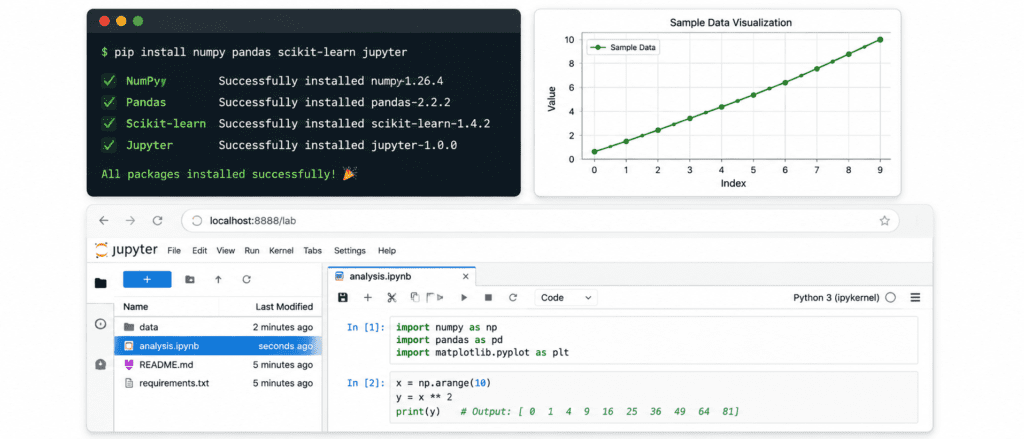
Part 4: GPU Basics (Do You Need One?) #
This is one of the most common questions beginners ask.
What is a GPU? #
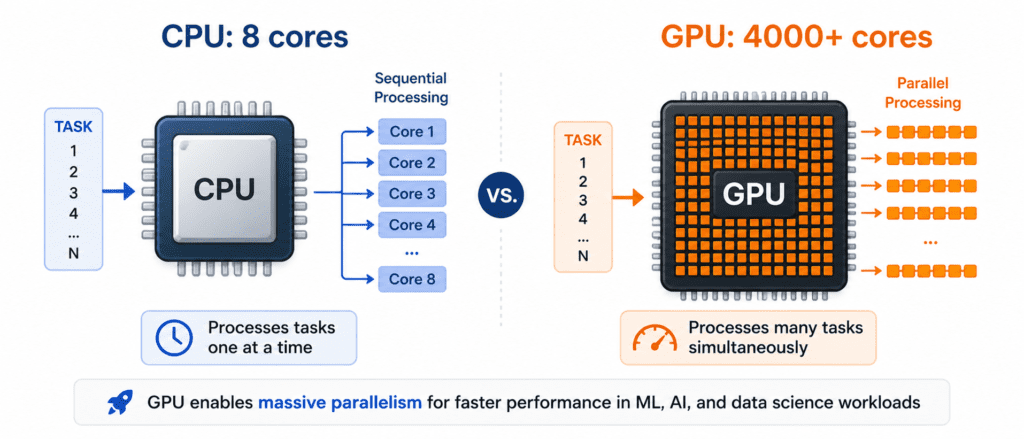
A GPU (Graphics Processing Unit) is a specialized processor originally designed for rendering graphics. It has thousands of small cores that can perform simple calculations in parallel.
Analogy:
- CPU: A few very smart PhDs solving complex problems
- GPU: Thousands of elementary school students doing simple addition
For ML, GPUs excel at the massive parallel calculations needed for deep learning.
When Do You NEED a GPU? #
| Use Case | Need GPU? | Why |
|---|---|---|
| Learning Scikit-learn | ❌ No | Small datasets, simple algorithms |
| Training small neural networks (MNIST, Fashion MNIST) | ❌ No | CPU is fine for these |
| Training medium neural networks (CIFAR-10, small CNNs) | ⚠️ Nice to have | GPU speeds up training from hours to minutes |
| Training large neural networks (ResNet, Transformer) | ✅ Yes | CPU would take weeks or months |
| Training Large Language Models (GPT, BERT) | ✅✅ Yes | Requires multiple high-end GPUs |
| Real-time inference | ⚠️ Depends | Small models run on CPU, large need GPU |
| Working with images or video | ⚠️ Nice to have | Larger datasets benefit from GPU |
How to Check if You Have a GPU #
On Windows:
- Open Task Manager (Ctrl + Shift + Esc)
- Go to “Performance” tab
- Look for “GPU” on the left sidebar
On macOS:
- Apple Silicon (M1, M2, M3) has integrated GPU
- Intel Macs may have AMD GPU
- Go to Apple Menu → About This Mac → System Report → Graphics/Displays
On Linux:
lspci | grep -i vga
# or for NVIDIA specifically
nvidia-smi
The Honest Truth for Beginners #
Do not buy a GPU yet.
Here is why:
- You will spend weeks learning the basics before you need a GPU
- Scikit-learn (the library you start with) does not use GPU
- Google Colab gives you a free GPU whenever you need one
- By the time you outgrow Colab, you will know exactly what hardware to buy
Learn first. Buy hardware later.
Part 5: Installing GPU Support (Optional – Advanced) #
If you have an NVIDIA GPU and want to use it for deep learning, follow these steps.
Step 1: Check GPU Compatibility #
You need:
- NVIDIA GPU with Compute Capability 3.5 or higher
- Check your GPU at developer.nvidia.com/cuda-gpus
Step 2: Install NVIDIA Drivers #
Windows/macOS: Download from NVIDIA website
Linux:
sudo apt install nvidia-driver-535
sudo reboot
Step 3: Verify Driver Installation
nvidia-smi
You should see something like:
+-----------------------------------------------------------------------------+
| NVIDIA-SMI 535.xx    Driver Version: 535.xx    CUDA Version: 12.1          |
|-------------------------------+----------------------+----------------------+
| GPU 0 Name: Tesla T4         | Bus-Id: 00:04.0      | |
| Fan Temp Perf Pwr:Usage/Cap | Memory-Usage | GPU-Util Compute M. |
|===============================+======================+======================|
| 0% 34C P8 9W / 70W | 3MiB / 15109MiB | 0% Default |
+-------------------------------+----------------------+----------------------+
Step 4: Install CUDA Toolkit #
Follow instructions from NVIDIA for your OS. This is complex and changes frequently. For most users, the deep learning libraries will install CUDA automatically.
Step 5: Install TensorFlow with GPU Support #
pip install tensorflow
TensorFlow 2.x automatically detects and uses GPU if available.
Test GPU detection:
import tensorflow as tf
print("GPU Available:", tf.config.list_physical_devices('GPU'))
Step 6: Install PyTorch with GPU Support #
Go to pytorch.org and use the configuration tool. For example:
pip install torch torchvision --index-url https://download.pytorch.org/whl/cu118
Test GPU detection:
import torch
print("CUDA Available:", torch.cuda.is_available())
print("GPU Count:", torch.cuda.device_count())
print("GPU Name:", torch.cuda.get_device_name(0) if torch.cuda.is_available() else "None")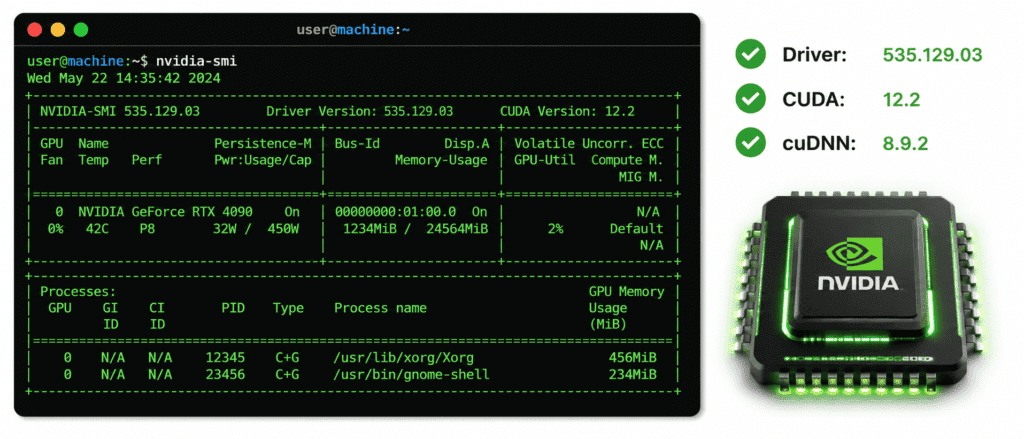
Part 6: Common Installation Problems and Solutions #
Problem 1: “pip command not found” #
Solution:
# Windows: Reinstall Python and check "Add to PATH"
# macOS/Linux:
python -m ensurepip --upgrade
Problem 2: “ModuleNotFoundError: No module named ‘sklearn'” #
Solution: You forgot to install the library or your virtual environment is not activated.
pip install scikit-learn
# or check if venv is active (you should see (ml_env) in terminal)
Problem 3: Jupyter does not see installed packages #
Solution: Install Jupyter kernel in your virtual environment
pip install ipykernel
python -m ipykernel install --user --name=ml_env
Problem 4: GPU not detected by TensorFlow #
Solution:
- Check drivers:
nvidia-smi - Check TensorFlow version:
pip show tensorflow - For Windows, install Visual C++ Redistributable
- Try downgrading TensorFlow:
pip install tensorflow==2.13.0
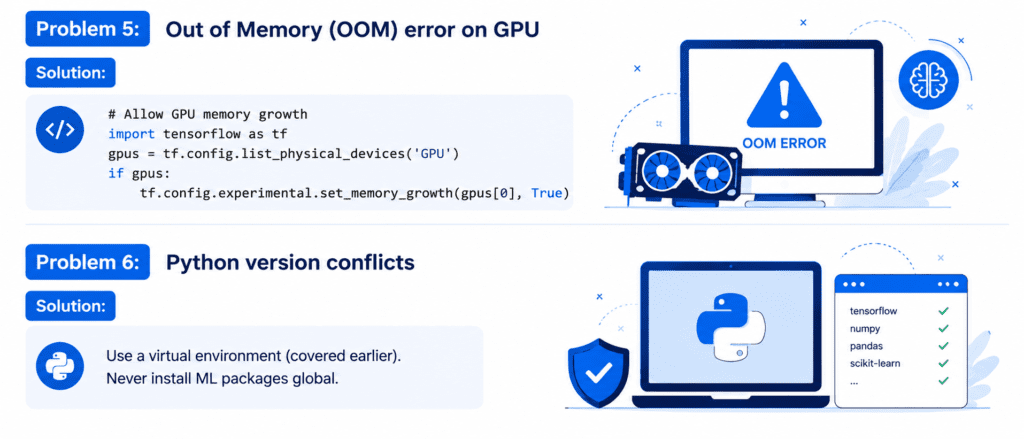
Problem 5: Out of Memory (OOM) error on GPU #
Solution:
# Allow GPU memory growth
import tensorflow as tf
gpus = tf.config.list_physical_devices('GPU')
if gpus:
    tf.config.experimental.set_memory_growth(gpus[0], True)
Problem 6: Python version conflicts #
Solution: Use a virtual environment (covered earlier). Never install ML packages globally on your system.
Part 7: Verification Checklist #
Before moving to the next module, confirm these items:
| Item | Command to Check | Expected Result |
|---|---|---|
| Python installed | python --version | 3.9 or higher |
| pip working | pip --version | Shows version, no errors |
| Virtual environment | which python (macOS/Linux) or where python (Windows) | Path shows ml_env |
| NumPy installed | python -c "import numpy; print(numpy.__version__)" | Version number |
| Pandas installed | python -c "import pandas; print(pandas.__version__)" | Version number |
| Scikit-learn installed | python -c "import sklearn; print(sklearn.__version__)" | Version number |
| Jupyter installed | jupyter --version | Shows version |
| GPU detected (optional) | python -c "import torch; print(torch.cuda.is_available())" | True if GPU available |
Part 8: Your First Jupyter Notebook #
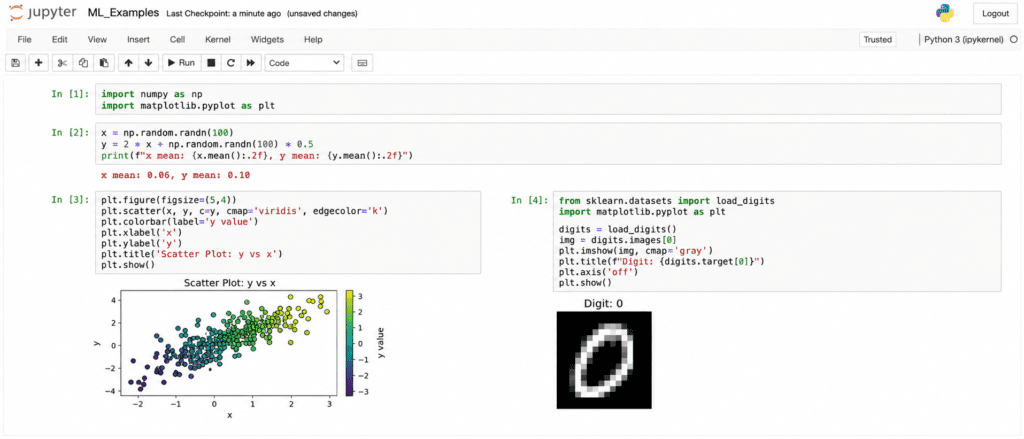
Let us create a beautiful first notebook to celebrate your setup.
Step 1: Launch Jupyter
jupyter notebook
Step 2: Click “New” → “Python 3”
Step 3: In the first cell, paste this:
# Cell 1: Welcome message
print("=" * 50)
print("Welcome to Your ML Environment!")
print("=" * 50)
print("\nEnvironment Information:")
Step 4: Run the cell (Shift + Enter)
Step 5: In the next cell:
# Cell 2: Check libraries
import sys
import numpy as np
import pandas as pd
import sklearn
import matplotlib
import seaborn as sns

print(f"Python version: {sys.version}")
print(f"NumPy version: {np.__version__}")
print(f"Pandas version: {pd.__version__}")
print(f"Scikit-learn version: {sklearn.__version__}")
print(f"Matplotlib version: {matplotlib.__version__}")
Step 6: In the next cell:
# Cell 3: Create a simple visualization
import matplotlib.pyplot as plt
import numpy as np

# Generate random data
np.random.seed(42)
x = np.random.randn(1000)
y = np.random.randn(1000)

# Create a scatter plot
plt.figure(figsize=(8, 6))
plt.scatter(x, y, alpha=0.5, c='blue', edgecolors='white', linewidth=0.5)
plt.xlabel('X values', fontsize=12)
plt.ylabel('Y values', fontsize=12)
plt.title('Your First ML Plot!', fontsize=14)
plt.grid(True, alpha=0.3)
plt.show()
Step 7: In the final cell:
# Cell 4: Load a real dataset
from sklearn.datasets import load_digits
digits = load_digits()

print(f"Digits dataset shape: {digits.images.shape}")
print(f"Number of classes: {len(digits.target_names)}")
print("\nFirst digit in the dataset:")
print(digits.target[0])

# Display the first digit
plt.figure(figsize=(3, 3))
plt.imshow(digits.images[0], cmap='gray')
plt.title(f'Digit: {digits.target[0]}', fontsize=12)
plt.axis('off')
plt.show()