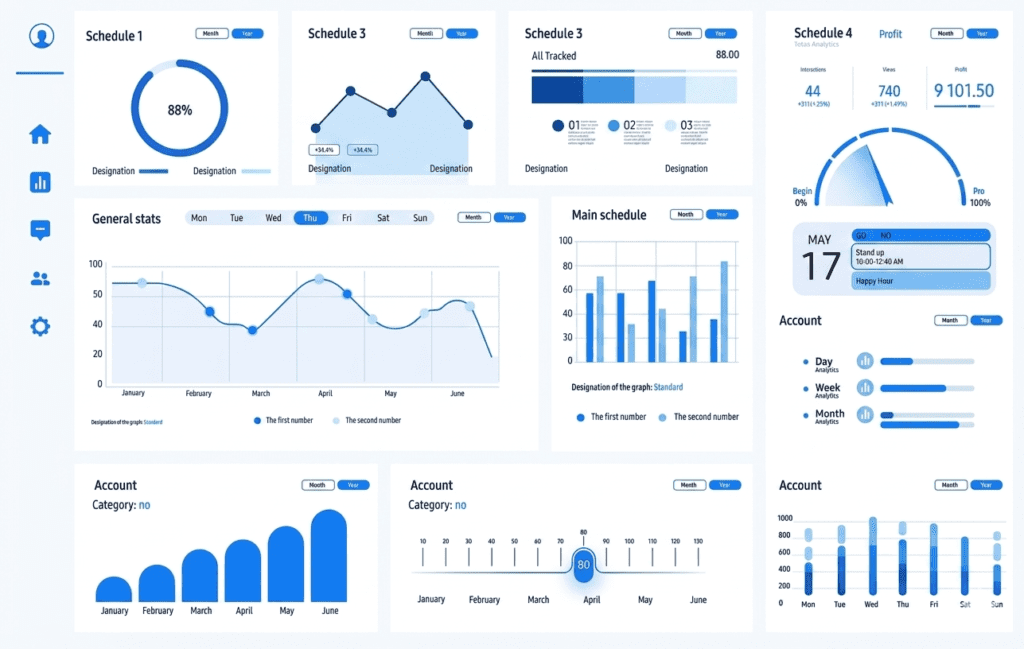
What is a Dashboard? #
A dashboard is a visual summary of data using charts, KPIs, and filters.
Goal:
- Show insights quickly
- Enable interaction
- Support decision-making
Preparing Data (Before Dashboard) #
Make sure:
- Data is cleaned (Power Query)
- Relationships are created
- DAX measures are ready
Example measures:
Total Sales = SUM(Sales[Amount])
Building Visualizations #
Adding Charts #
Go to Visualizations pane and choose:
| Chart | Use |
|---|---|
| Bar Chart | Compare categories |
| Line Chart | Trends over time |
| Pie Chart | Proportions |
| Card | KPIs (Total Sales) |
Example Dashboard #
- Card → Total Sales
- Bar Chart → Sales by Region
- Line Chart → Monthly Sales
Drag & Drop Fields #
- Axis → Category (Region)
- Values → Sales
Making Dashboard Interactive #
Filters #
Types: #
- Visual-level
- Page-level
- Report-level
Example:
Filter only “2025” data
Slicers (Important) #
Add slicer:
- Choose field (Region, Date)
- Users click to filter
Drill-Down Feature #
Allows deeper analysis
Example:
- Year → Month → Day
Enable:
- Add hierarchy
- Click drill-down button
Tooltips #
Show extra info on hover
Example:
- Hover on chart → shows details
Cross-Filtering #
Click one chart → filters others automatically
Designing a Good Dashboard #
Layout Tips #
- Keep it simple
- Align visuals properly
- Use consistent colors
Best Practices #
- Highlight KPIs
- Avoid too many charts
- Use meaningful titles
Example Layout #
Top:
- KPI Cards
Middle:
- Charts
Side:
- Slicers
Creating Reports #
What is a Report? #
A report is a collection of dashboard pages
Each page shows different insights
Multiple Pages Example #
- Page 1 → Overview
- Page 2 → Sales Analysis
- Page 3 → Customer Insights
Navigation #
Add buttons:
- Insert → Buttons
- Link pages
Publishing Reports #
What is Publishing? #
Uploading your report to Power BI Service (cloud)
So others can access it
Steps to Publish #
- Click Home → Publish
- Sign in to Power BI account
- Select workspace
- Upload
Accessing Online #
Open browser → Power BI Service
- View dashboard
- Share with others
Sharing Reports #
- Share link
- Give access to users
- Embed in website
Refreshing Data #
Why Refresh? #
To update dashboard with new data
Types #
- Manual refresh
- Scheduled refresh
Exporting Reports #
- Export to PDF
- Export to PowerPoint
Real-World Example Workflow #
- Import sales data
- Clean in Power Query
- Create DAX measures
- Build dashboard
- Add slicers & filters
- Publish report
- Share with team
Summary Table #
| Feature | Purpose |
|---|---|
| Charts | Visual insights |
| Slicers | Interactive filtering |
| Drill-down | Deep analysis |
| Reports | Multiple pages |
| Publish | Share online |