
Python Installation and Environment Setup: The Complete Guide #
Setting up your programming environment correctly is the crucial first step in your coding journey. A single misstep during installation can lead to frustrating path errors down the line. In this comprehensive, step-by-step guide, we will walk you through the process of installing Python on multiple operating systems, configuring system variables, and writing your very first functional program.
Before starting Python programming, it is important to install Python on your system and properly set up the environment. This section guides you through the basic steps to get started.
Step 1: Downloading Python (The Official Way) #
To begin, you need to download the official Python interpreter. The interpreter is the software engine that reads and executes your Python code.
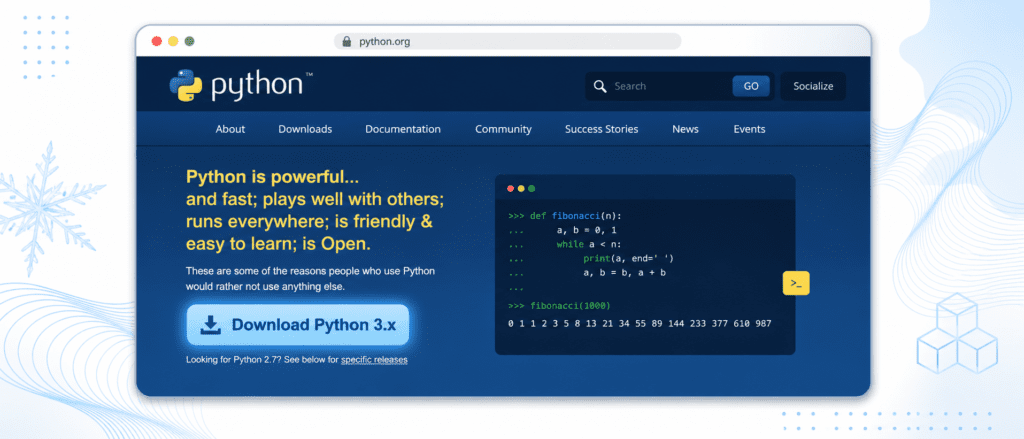
Detailed Download Instructions: #
- Open your web browser and navigate to the official Python website: https://www.python.org/.
- Hover your mouse over the Downloads menu.
- The website will automatically detect your operating system (Windows, macOS, or Linux). Click on the latest stable version button (e.g., Python 3.11.x or 3.12.x).
- Save the executable installer file to your downloads folder.
Tip for Beginners: Always avoid downloading Python from third-party websites. Third-party sources may contain outdated binaries or bundled malware. Stick exclusively to the official Python Software Foundation (PSF) portal.
Step 2: Installing Python on Windows (With Crucial Configurations) #
Installing Python on Windows is straightforward, but there is one critical step that most beginners miss. If this step is ignored, your system will not recognize the python command in the Command Prompt.
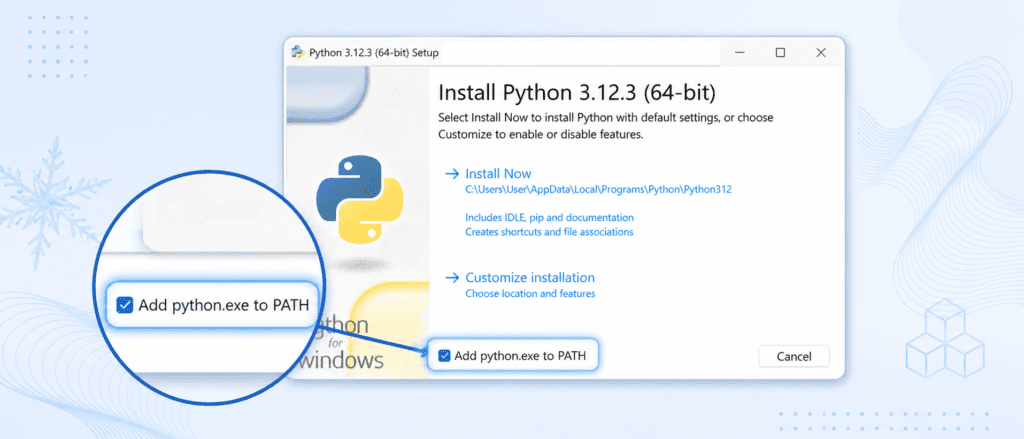
Step-by-Step Windows Installation Flow: #
- Locate the downloaded
.exefile (usually named something likepython-3.12.x-amd64.exe) and double-click to run it. - CRITICAL STEP: At the very bottom of the installation window, you will see a checkbox labeled “Add python.exe to PATH”. Make sure you check this box before proceeding.
- Why is this important? Adding Python to your PATH variable tells Windows where the Python executable resides, allowing you to run scripts from any directory using the terminal.
- Once the checkbox is marked, click on “Install Now”.
- If prompted by Windows User Account Control (UAC), click Yes to grant permission.
- Wait for the setup process to finish. Once complete, you will see a screen that says “Setup was successful.”
- Click Close to complete the process.
Step 3: Installing Python on macOS and Linux #
If you are not using Windows, the installation process differs slightly since some Unix-based operating systems come with older versions of Python pre-installed.
For macOS Users: #
While macOS comes with a system terminal, its built-in Python version is often outdated.
- Download the macOS
.pkginstaller from Python.org. - Run the installer and follow the standard on-screen wizard instructions.
- Alternatively, if you use the Homebrew package manager, you can open the Terminal and run:
brew install python
For Linux Users (Ubuntu/Debian): #
Linux distributions almost always include Python out of the box. To install the latest version, use your distribution’s package manager via the terminal:
sudo apt update
sudo apt install python3 python3-pip
Step 4: Verifying the Installation via Terminal #
Once Python is installed, it is highly recommended to verify that your operating system connects to the interpreter correctly.
Image Prompt: A digital visualization of a terminal or command prompt interface on a clean white desk setup. The terminal window has a subtle ice blue frame. Inside, the line reads: “C:> python –version” followed by the output: “Python 3.12.2”. The design is highly minimal, using various shades of professional blue and soft white tones.
How to Verify Installation: #
- Open your system’s command-line interface:
- Windows: Press the
Win + Rkey, typecmd, and press Enter. - macOS/Linux: Open the Terminal application.
- Windows: Press the
- Type the following command exactly as shown and press Enter:
python --version
- Note: On some systems (especially Linux/macOS), you may need to type
python3 --versioninstead of justpython.
Expected Output:
Python 3.12.x
Step 5: Understanding Your IDE Options #
To write Python code efficiently, you need more than just a standard text editor like Notepad. You need an Integrated Development Environment (IDE) or a specialized code editor. An IDE provides syntax highlighting, auto-completion, and direct debugging tools.
The table below outlines the best code editors used by industry professionals today:
| Editor / IDE Name | Best Suited For | Key Features | System Impact |
| VS Code | General development & Data Science | Lightweight, highly customizable, vast extension library. | Low / Medium |
| PyCharm | Full-scale software development | Robust built-in terminal, code refactoring, Git integration. | High |
| Jupyter Notebook | Data Analysis & AI Research | Interactive execution, blocks of code, data visualizations. | Medium |
Step 6: Creating and Running Your First Python Program #
Let us create and execute the traditional “Hello, World!” program. This serves as a test to confirm that your development environment works end-to-end.
Image Prompt: A modern, clean mockup of the Visual Studio Code editor UI on a crisp light background. The file tab is labeled “hello.py”. Inside the text area, the line
print("Hello, World!")is clearly typed out. Soft ice blue highlights emphasize the code syntax. Overall visual tone is modern, tech-focused, minimalist, using shades of white and blue.
Method A: Using the Python Interactive Shell #
- Open your terminal or Command Prompt.
- Type
python(orpython3) and hit Enter. - You will enter the interactive Python Shell, indicated by the triple arrows
>>>. - Type the following code:
print("Hello, World!")Press Enter. You will see the immediate output printed right below:
Hello, World!
Type exit() to leave the shell.
Method B: Creating a Dedicated Script File (Recommended) #
- Open your favorite code editor (like VS Code).
- Create a new file and name it exactly:
first_program.py.- Important: Always use the
.pyfile extension. This tells the computer that it is a Python script file.
- Important: Always use the
- Write the correct code exactly as follows:
print("Hello, World!")Save the file.
Open your terminal, navigate to the folder where you saved the file, and type:
python first_program.py
Your console will output the string: Hello, World!.