
7 Powerful External Packages and pip Guide #
The true power of the Python ecosystem comes from its massive global developer community. While the Python Standard Library includes excellent built-in tools for basic automation, there are thousands of complex problems—such as building a deep learning model, creating a professional web application, or scraping data from the internet—that require specialized code.
Instead of writing this complex code from scratch, you can use External Packages. These are collections of modules created by other developers and shared openly on the Python Package Index (PyPI).
To download, install, and manage these external tools effortlessly, Python provides a built-in command-line tool called pip.
Moving Beyond the Built-in Library #
To understand how external packages expand your development capabilities, consider the evolution of a platform like AI Learner Tech:
- Built-in tools allow you to calculate standard math or create simple folders on your server.
- External packages allow you to connect your site to advanced AI features, build professional dynamic web dashboards, or read complex spreadsheets.
By utilizing external packages, you are directly importing code written and optimized by world-class software engineers. This reduces your development time from weeks to minutes.
What is pip and PyPI? #
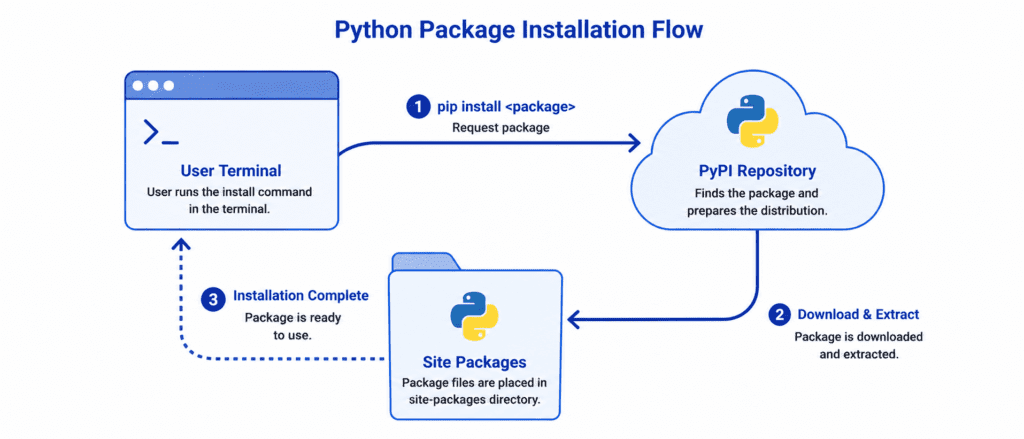
Before you install an external package, it helps to understand how the tools connect in the background:
- PyPI (Python Package Index): A public cloud repository where developers upload their open-source Python packages. It acts like an official App Store for Python code.
pip: A command-line installer that comes pre-packaged with your Python installation. It acts as the delivery driver that fetches packages from the PyPI cloud and installs them into your local system’s memory.
Because pip is a command-line tool rather than a Python function, you run its commands inside your operating system’s terminal (Command Prompt on Windows, or Terminal on macOS and Linux)—not inside a Python script.
Rules of Syntax: The Essential pip Commands #
Let’s review the most frequently used pip commands in software development.
1. Installing a Package #
To install an external package, open your terminal and type the keyword pip install followed by the exact name of the package.
pip install requests
This tells pip to search PyPI for the newest version of the requests package (a highly popular library used to fetch data from websites), download its files, and store them securely in your system’s site-packages directory.
2. Listing Installed Packages #
To see exactly which third-party packages are currently installed on your computer, use the list command.
pip list
3. Uninstalling a Package #
If you no longer need a third-party package or want to free up storage space, you can remove it using the uninstall command.
pip uninstall requests
Let’s Write Code: Working with External Packages #
Let’s explore how to use the most popular external packages in real-world Python scripts.
Example: Fetching Online Data with the requests Package #
Once you have run pip install requests in your terminal, the package is immediately available to be imported into any of your local Python scripts using the standard import keywords.
import requests

# Fetching raw data from a public testing API
response = requests.get("https://jsonplaceholder.typicode.com/posts/1")

# Checking if the connection was successful
if response.status_code == 200:
    # Extracting the data as a Python dictionary
    data = response.json()
    print(f"Post Title: {data['title']}")
else:
    print(f"Error: Unable to fetch data. Status code: {response.status_code}")
Output: #
Post Title: sunt aut facere repellat provident occaecati excepturi optio reprehenderit
Example: Formatting Data Tables with the tabulate Package #
To print clean, readable data tables in your terminal, you can download the tabulate package by running pip install tabulate in your command line.
from tabulate import tabulate

# Creating a list of student records for AI Learner Tech
student_data = [
    ["Sarim", "Python Basics", "Completed"],
    ["Ali", "Data Science", "In Progress"],
    ["Hamza", "Machine Learning", "Completed"]
]

# Defining table column headers
headers = ["Student Name", "Enrolled Course", "Status"]

# Generating a clean visual table layout
print(tabulate(student_data, headers=headers, tablefmt="grid"))
Output: #
+----------------+-------------------+-------------+
| Student Name   | Enrolled Course   | Status      |
+================+===================+=============+
| Sarim          | Python Basics     | Completed   |
+----------------+-------------------+-------------+
| Ali            | Data Science      | In Progress |
+----------------+-------------------+-------------+
| Hamza          | Machine Learning  | Completed   |
+----------------+-------------------+-------------+
Handling Project Dependencies with requirements.txt #
When you build complex applications, you will quickly find yourself using multiple external packages. If you want to share your project with another developer, you don’t want them to manually install every single package one by one.
To automate this workflow, Python uses a special text file named requirements.txt. This file lists every package and its exact version needed to run the software.
Step 1: Generating the File #
To instantly generate a text file containing all your installed packages, use the freeze command in your terminal:
pip freeze > requirements.txt
Step 2: Installing from the File #
When another developer downloads your project folder, they can install every single required package automatically in one step by running:
pip install -r requirements.txt
Challenge Questions for Practice #
Put your package management skills to the test with these practical exercises:
Challenge 1: Terminal Installation Test #
Open your computer’s terminal or Command Prompt. Install the external package named emoji by running pip install emoji. Create a new Python file, import the module using import emoji, and use its emoji.emojize() function to print out a success message with a smiley face emoji.
Challenge 2: Advanced Web Checker #
Install the requests library on your system. Write a Python script that checks the status code of the main website of your e-learning platform (https://ailearnertech.com). If the status code is 200, print "Website is live and healthy!".
Challenge 3: Generating Requirements #
In your project folder’s terminal, use the pip freeze command to export your currently installed packages into a file called my_requirements.txt. Open the generated text file to review the package names and versions that Python saved inside it.